
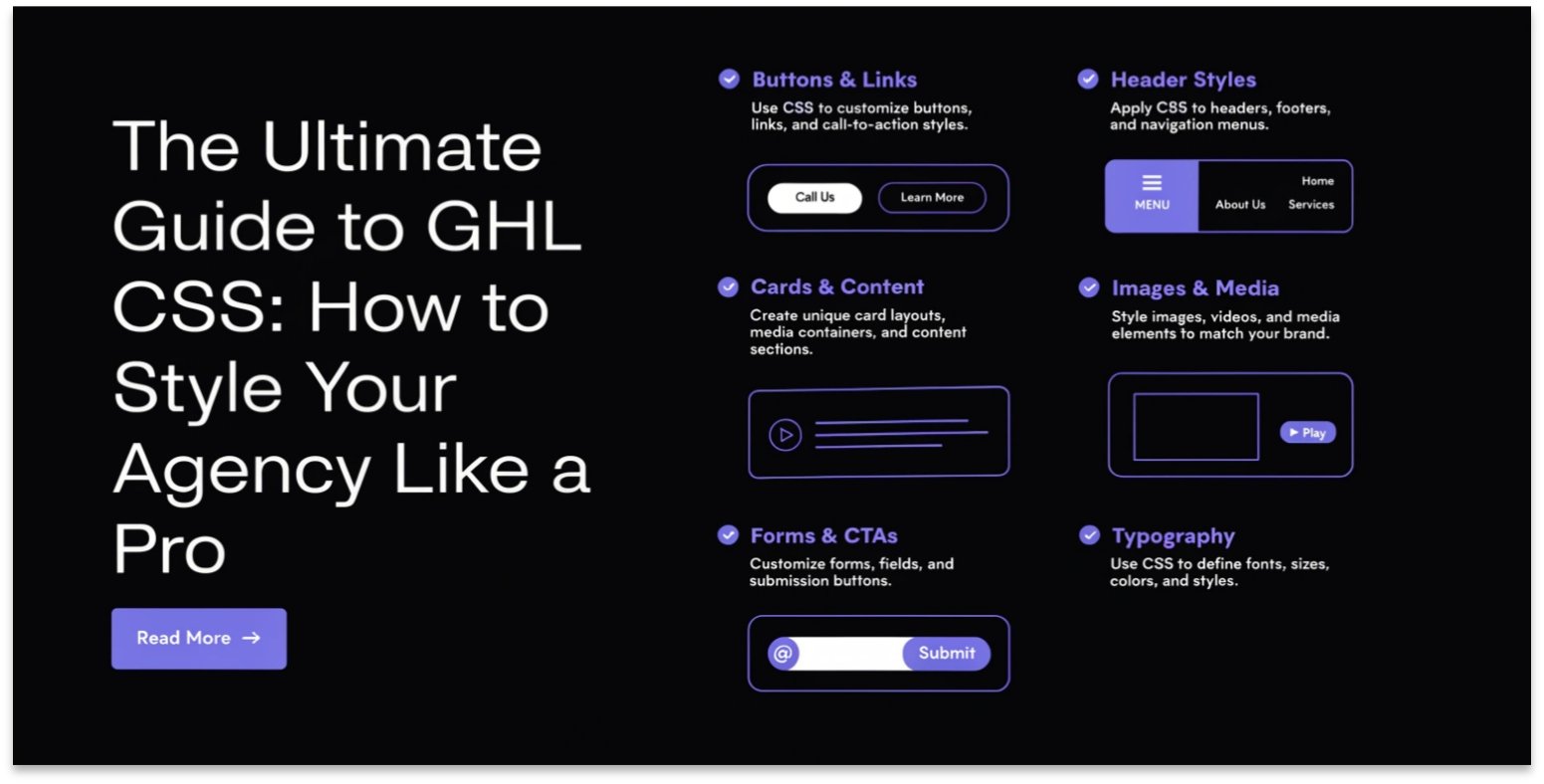
The Ultimate Guide to GHL CSS: How to Style Your Agency Like a Pro
Do you want your GoHighLevel (GHL) platform to stand out? Most people use the same basic look. But top agencies use GHL CSS to make their sites look unique.
CSS stands for Cascading Style Sheets. It is a simple code used to change colors, fonts, and layouts. In this guide, you will learn how to use CSS in GHL to wow your clients.
What is GHL CSS?
GHL CSS is a way to add custom design to your HighLevel account. The standard GHL builder is great, but it has limits. CSS allows you to move beyond those limits. You can change things like:
- Button colors that glow or change on hover.
- Custom fonts that match your brand.
- Unique backgrounds for your login pages.
- Hidden elements that you don’t want clients to see.
Why Use Custom CSS in GoHighLevel?
Most agencies want a “White Label” feel. This means the platform should look like your own software, not GHL. CSS is the best tool for this.
Benefits of Custom CSS:
- Brand Trust: Your clients see a professional, custom-made site.
- Better User Experience: You can make buttons bigger or forms easier to read.
- High Conversions: A better-looking funnel often gets more sales.
Where to Put Your GHL CSS Code
There are three main places to add your code. Where you put it depends on what you want to change.
1. The Agency Level (Global Styling)
If you want to change the look of the whole dashboard for all clients, go to:
- Settings > Company > Custom CSS.
2. The Funnel or Website Level
If you only want to change one specific landing page, go to:
- Sites > Funnels > Settings > Custom CSS.
3. The Form or Survey Level
To style a specific form, open the Form Builder and find the Styles tab. There is a box at the bottom for CSS, for Gradients.
GHL Standard Builder vs. Custom CSS
| Feature | Standard Builder | Custom CSS |
| Ease of Use | Very Easy (Drag & Drop) | Medium (Needs Code) |
| Design Freedom | Limited to Themes | Unlimited |
| Mobile Control | Basic | Very Precise |
| Cost | Free | Free |
Common GHL CSS Snippets (Copy & Paste)
Here are a few simple codes you can use right now. Just copy these into your GHL CSS box.
Change the Sidebar Color
CSS
.hl_sidebar {
  background: #1F2937 !important;
}
Make Buttons Glow on Hover
CSS
button:hover {
  box-shadow: 0 0 15px #7C3AED !important;
  transition: 0.3s;
}
Hide the “Opportunities” Tab
CSS
.hl_navItem[data-id="opportunities"] {
  display: none !important;
}
How to Find CSS Selectors in GHL
To change an element, you need to know its “name” or Selector.
- Open your GHL page in a Google Chrome browser.
- Right-click on the element you want to change (like a button).
- Click Inspect.
- Look for the text that says
class="..."orid="...". - Copy that name and use it in your CSS code.
Best Practices for GHL CSS in 2026
When you add code, follow these simple rules to keep your site running fast.
Keep it Clean
Don’t add too much code at once. Only add what you need. Too much code can slow down your page.
Use the “!important” Tag
GHL has its own styles. To make your custom code work, you often need to add !important at the end of your CSS line. This tells the browser to use your style instead of the default one.
Test on Mobile
Always check your site on a phone. Sometimes a change that looks good on a computer can break the layout on mobile.
Frequently Asked Questions (FAQs)
Does using CSS slow down my GHL site?
If you use a small amount of clean code, it will not slow down your site. Avoid huge files of unused code.
Do I need to be a coder to use GHL CSS?
No. You can find many “copy and paste” snippets online. You just need to know where to paste them.
Can CSS break my GoHighLevel account?
CSS only changes how things look. It does not break the way the software works. If something looks wrong, just delete the CSS and it will go back to normal.
Is GHL CSS free to use?
Yes. GoHighLevel does not charge extra for adding your own custom code.
Conclusion
Using GHL CSS is the best way to move from a “standard” agency to a “premium” one. It gives you the power to create a truly white-labeled experience. Start with small changes, like button colors or font sizes. As you get comfortable, you can build beautiful, custom dashboards that your clients will love.
Ready to start? Pick one snippet from the list above and try it in your sub-account today!