
GHL Dashboard CSS: How to Create a Custom White-Label Experience
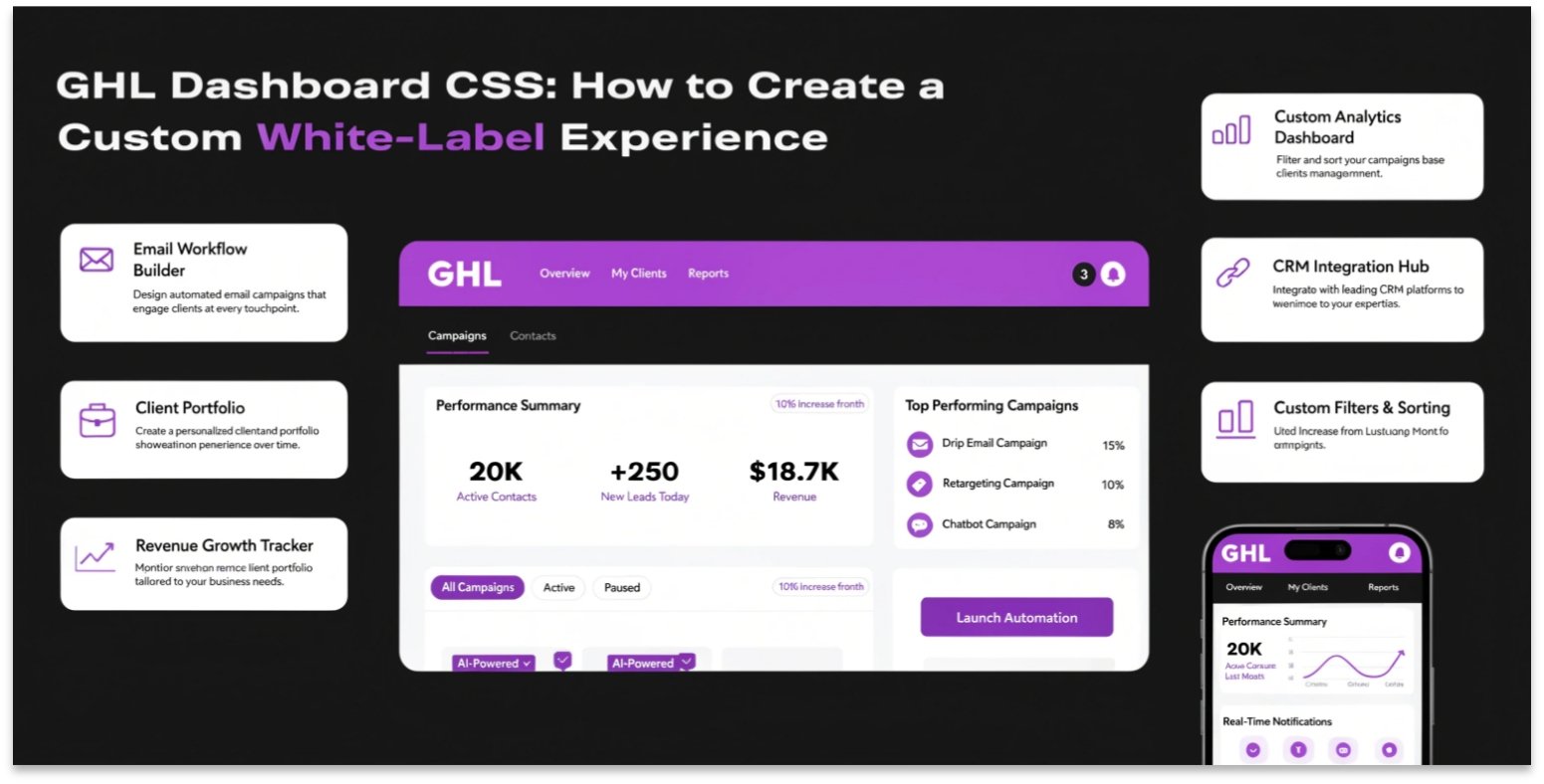
Do you want to change the look of your GoHighLevel (GHL) dashboard? A custom dashboard makes your agency look like a high-end software company. By using GHL Dashboard CSS, you can hide menus, change colors, and add your own branding.
In this guide, we will show you how to transform the standard GHL interface into a professional, white-labeled platform. To see how these changes compare to page-specific styling, check out our GHL CSS master guide.
Why Customize the GHL Dashboard?
When you sell GHL to clients, you want them to feel like they are using your software. The default look is fine, but it is recognizable. Customizing the dashboard helps with:
- Brand Identity: Use your specific brand colors and fonts.
- Simplification: Hide tools that your clients don’t need.
- Premium Pricing: A custom-looking app allows you to charge more.
Top Ways to Use GHL Dashboard CSS
There are many parts of the dashboard you can change. Here are the most popular requests from agency owners:
1. Customizing the Sidebar
The sidebar is the first thing a client sees. You can change its background color, the hover effect on icons, and even the width of the menu.
2. Styling the Top Header
You can add a gradient to the top bar or change the search box style. This makes the entire interface feel modern and fresh.
Standard Dashboard vs. Custom CSS Dashboard
| Feature | Standard GHL | Custom CSS Dashboard |
| Colors | Default Blue/Grey | Your Brand Colors |
| Menu Items | Shows Everything | Hidden or Reordered |
| Feel | Basic SaaS | Premium Software |
CSS Snippets for Agency Branding
Ready to style your agency? Copy and paste these codes into your Agency Settings > Company > Custom CSS box.
Change Sidebar Background Color
CSS
.hl_sidebar {
  background-color: #0d1117 !important;
}
Hide the “Help” Icon for Clients
CSS
#help-icon-id {
  display: none !important;
}
Step-by-Step: How to Apply Global Dashboard CSS
- Log in to your Agency View.
- Click on Settings in the bottom left.
- Select the Company tab.
- Scroll down to Custom CSS.
- Paste your code and click Update Company.
If you are also building out a course area for your clients, make sure to read our guide on GHL Membership Site CSS to match your dashboard’s look.
Conclusion
Customizing your dashboard is a game-changer. It moves your business away from looking like a “reseller” and toward looking like a “creator.”