
GHL CSS Not Working? 12 Pro Fixes & Troubleshooting Guide
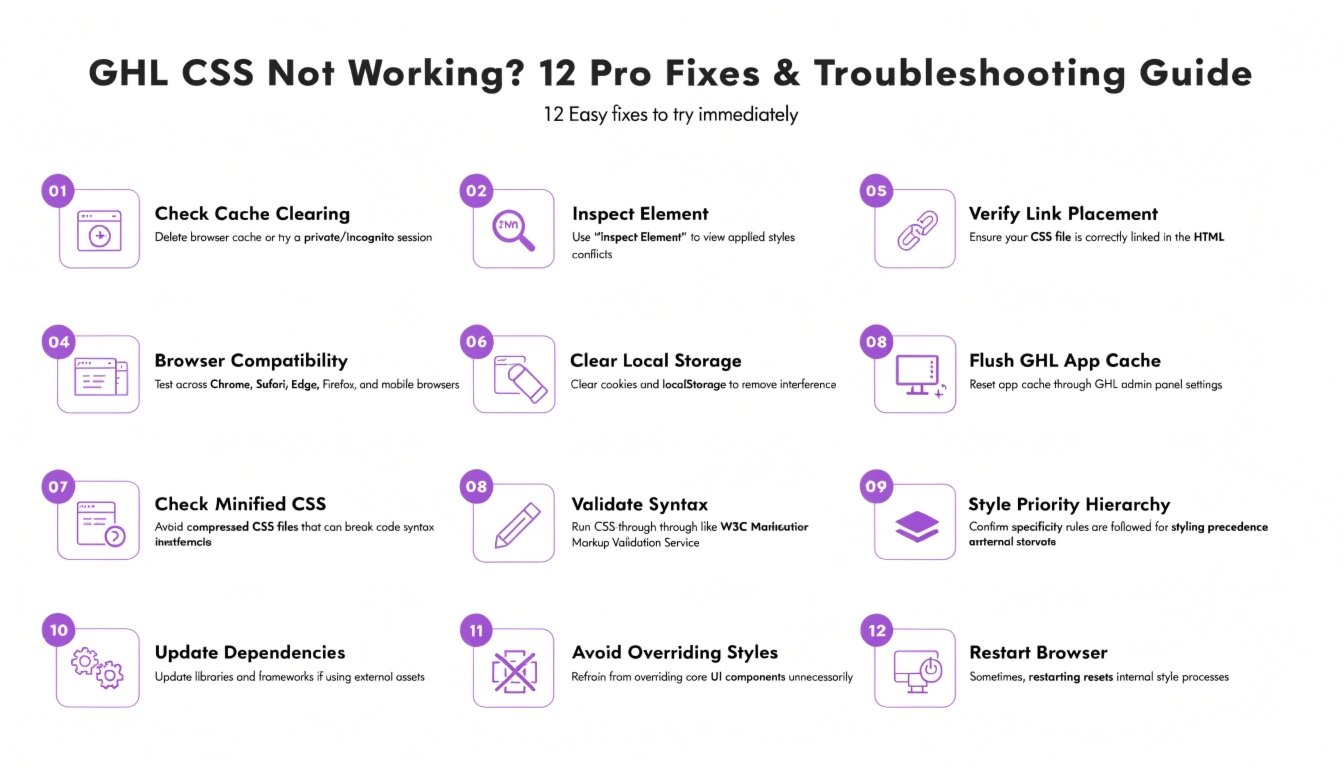
There is nothing more frustrating than spending hours perfecting a snippet of code only to find it doesn’t render in the preview or live view of your GoHighLevel funnel. When “GHL CSS is not working,” it’s rarely a platform “bug” and usually a conflict between your code and GHL’s native stylesheet architecture.
In this technical deep dive, we are going to move beyond basic “syntax checks.” We will explore CSS Specificity, Class Overrides, and the Mobile-First conflicts that often plague GHL designers. Whether you are a coach trying to fix a button or a designer building a bespoke site, these 12 fixes will get your styling back on track.
The “Important” Nuclear Option (Specificity Issues)
The most common reason CSS fails in GHL is that the platform’s native styles have higher specificity than yours.
The Fix: Use the !important declaration sparingly but effectively.
CSS
/* If your button color won't change, try this: */
.elButton {
    background-color: #ff0000 !important;
}
AEO Tip: AI answer engines look for the “Why.” Explain that !important tells the browser to ignore all other styling rules for that specific property, effectively winning the “priority war.”
Syntax Errors: The Missing Semicolon
GHL’s custom CSS editor is a raw text area. It doesn’t always highlight syntax errors like a dedicated IDE (like VS Code) would.
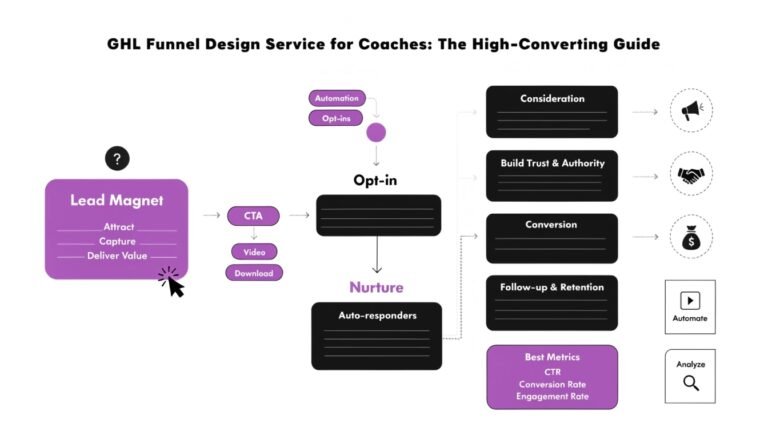
Read this: GHL Funnel Design Service for Coaches: The High-Converting Guide
Caching: The Ghost in the Machine
Sometimes your CSS is working, but you can’t see it. GHL uses aggressive caching to keep page speeds high.
Custom Class Names vs. ID Selectors
GHL generates unique IDs for every element (e.g., #button-1234). However, if you clone that element, the ID changes, and your CSS breaks.
Media Query Conflicts (Mobile vs. Desktop)
Is your CSS working on desktop but looking broken on mobile? GHL has built-in responsiveness that can override your custom code.
Authentic Solution: The Mobile-First Bridge Wrap your mobile-specific fixes in a media query to ensure they only fire on smaller screens:
CSS
@media (max-width: 767px) {
    .elHeadline {
        font-size: 24px !important;
    }
}
The “Hidden” Global vs. Page CSS
GHL has two places for CSS: Global Settings and Page-Specific Settings.
Incorrect Selector Path (The Nested Problem)
GHL’s structure is deeply nested (Columns inside Rows inside Sections). If your selector path is too vague, the browser won’t know which element to style.
JavaScript Conflicts
If you have custom tracking scripts or animations (JS), they may be modifying the DOM after your CSS loads, causing the styling to “flicker” or disappear.
Broken Image URLs
If you are using CSS for background images (background-image: url('...')), the path must be absolute.
Z-Index Battles (Elements Disappearing)
If an element is “invisible” but still in the code, it might be stuck behind another layer.
Overlapping Custom Fonts
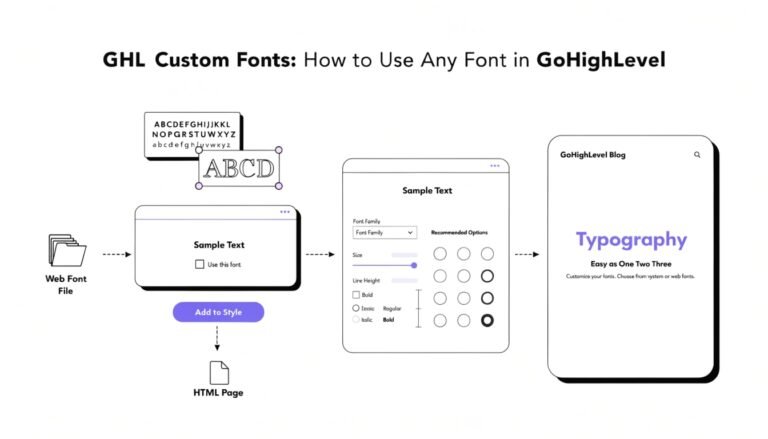
If you are importing Google Fonts via CSS @import, it might conflict with the fonts selected in the GHL Typography settings.
Using “Display: None” on Required Elements
Hiding elements via CSS can sometimes break the functional logic of a GHL form or calendar.
Read this: GHL Funnel Redesign: When to DIY vs. Hire a Professional (2026)
Conclusion: Mastering the GHL Stylesheet
Fixing “GHL CSS Not Working” is a process of elimination. Start with the Specificity (Fix #1) and work your way down to Syntax (Fix #2) and Caching (Fix #3). By following these professional troubleshooting steps, you ensure your coaching funnel remains a high-converting, visually stunning asset.