GHL Custom Fonts: How to Use Any Font in GoHighLevel
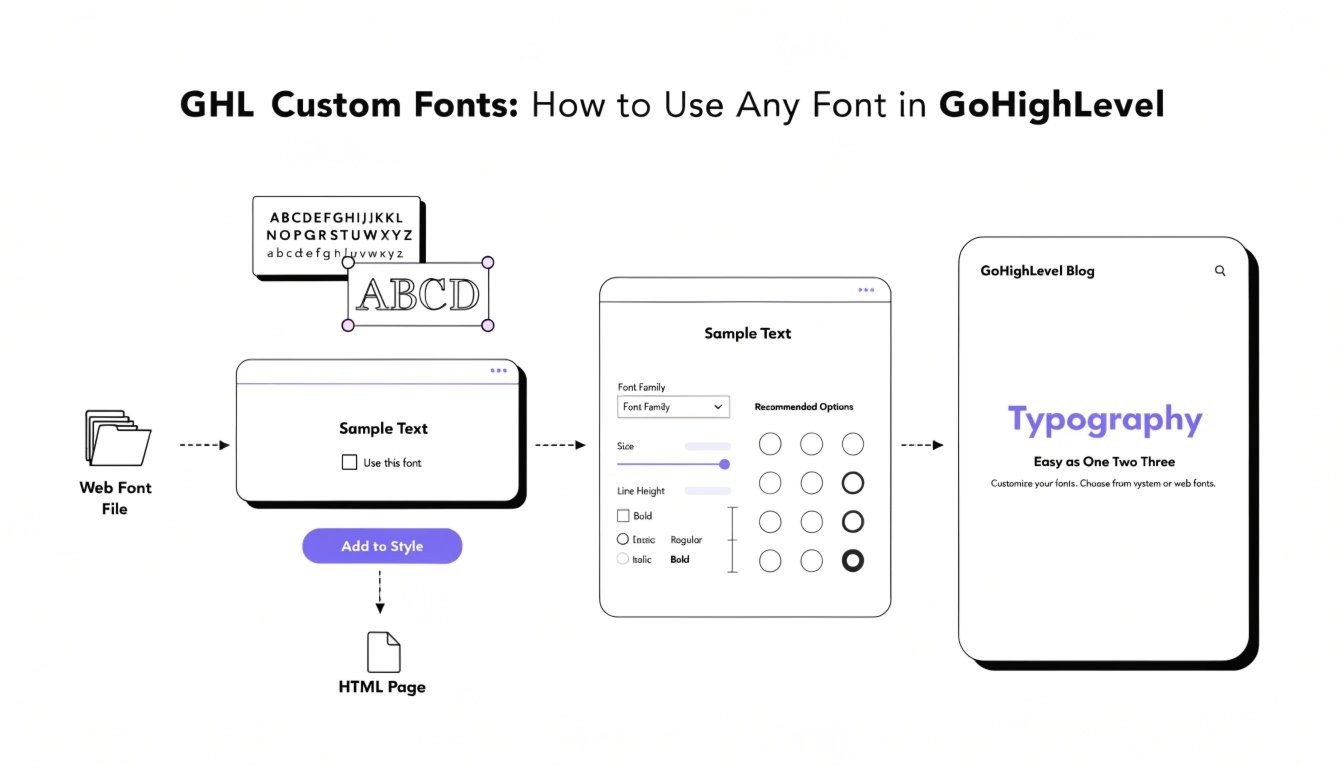
Do you want your GoHighLevel (GHL) funnels to match your brand’s unique style? While GHL offers many built-in fonts, sometimes you need a specific look that isn’t in the list. By using GHL CSS, you can import any font and apply it to your headlines, buttons, and paragraphs.
In this guide, we will show you how to add Google Fonts and custom font files to your account. This is a great next step after setting up your GHL Dashboard CSS to ensure your branding is consistent everywhere.
Why Use Custom Fonts in GHL?
Fonts carry emotion. A bold, modern font makes a tech agency look innovative, while a clean serif font makes a law firm look trustworthy. Custom fonts help you:
- Stand Out: Avoid the “default” look that many GHL users have.
- Brand Consistency: Use the exact same fonts as your logo and marketing materials.
- Improve Readability: Choose fonts that are easier to read on mobile devices by following our GHL Mobile Responsive Guide.
Where to Add Custom Font CSS
You can add font code to the Custom CSS box in your Funnel or Website settings. This ensures the font loads correctly for every visitor who lands on your page.
Standard GHL Fonts vs. Custom CSS Fonts
| Feature | Standard GHL Fonts | Custom CSS Fonts |
| Selection | Limited to Built-in List | Any Font in the World |
| Brand Matching | “Close enough” | 100% Accurate |
| Loading Speed | Pre-loaded by GHL | Controlled by You |
| Creativity | Basic | Unlimited |
How to Add Google Fonts to GHL
Google Fonts is the easiest way to get custom typography. Here is the process:
Example Code:
CSS
@import url('https://fonts.googleapis.com/css2?family=Montserrat:wght@700&display=swap');

h1, h2, h3 {
  font-family: 'Montserrat', sans-serif !important;
}
Applying Fonts to Specific Elements
Sometimes you only want your GHL CSS Buttons to have a custom font while the rest of the text stays the same. To do this, you must target the specific element.
Style Only the Buttons:
CSS
.elButton {
  font-family: 'Montserrat', sans-serif !important;
  letter-spacing: 1px !important;
}
Style Only the Paragraphs:
CSS
p {
  font-family: 'Open Sans', sans-serif !important;
  line-height: 1.6 !important;
}
Best Practices for Using Fonts
Limit Your Font Styles
Don’t use five different fonts on one page. This looks messy and slows down your site. Stick to one font for headlines and one font for body text.
Check Loading Speed
Custom fonts can slow down your page if the files are too large. Google Fonts are usually fast, but if you upload your own files, make sure they are in the .woff2 format for the best performance.
Focus on Mobile
Some fancy fonts look great on a desktop but are hard to read on a phone. Always test your font sizes on a mobile device to make sure your GHL Forms are still easy to fill out.
Frequently Asked Questions (FAQs)
Can I use a font I bought from a site like Adobe or Creative Market?
Yes. You will need to host the font file online (like on a CDN or your own server) and use the @font-face CSS rule to link to it.
Why is my custom font not showing up?
Make sure you have the !important tag at the end of your CSS line. GHL’s default font settings are very strong and will try to override your custom code.
Does GHL support custom fonts in the Membership area?
Yes! You can add font code to the Custom JS/CSS box in your Membership settings to style your course portals.
Conclusion
Adding GHL custom fonts is one of the easiest ways to upgrade your design. It gives your funnels a professional, “high-ticket” feel that builds trust with your leads. Pick a font that matches your brand’s personality today and see how it transforms your landing page!