GHL CSS Selectors: How to Target and Style Any Element
Are you struggling to change a specific button or text block in GoHighLevel (GHL)? Sometimes, the standard settings don’t let you change everything. This is where GHL CSS selectors come in. To use custom code, you must first find the “name” of the element you want to style.
In this guide, we will show you how to find any GHL selector using your browser. This will help you master GHL CSS and build truly unique funnels.
What is a CSS Selector?
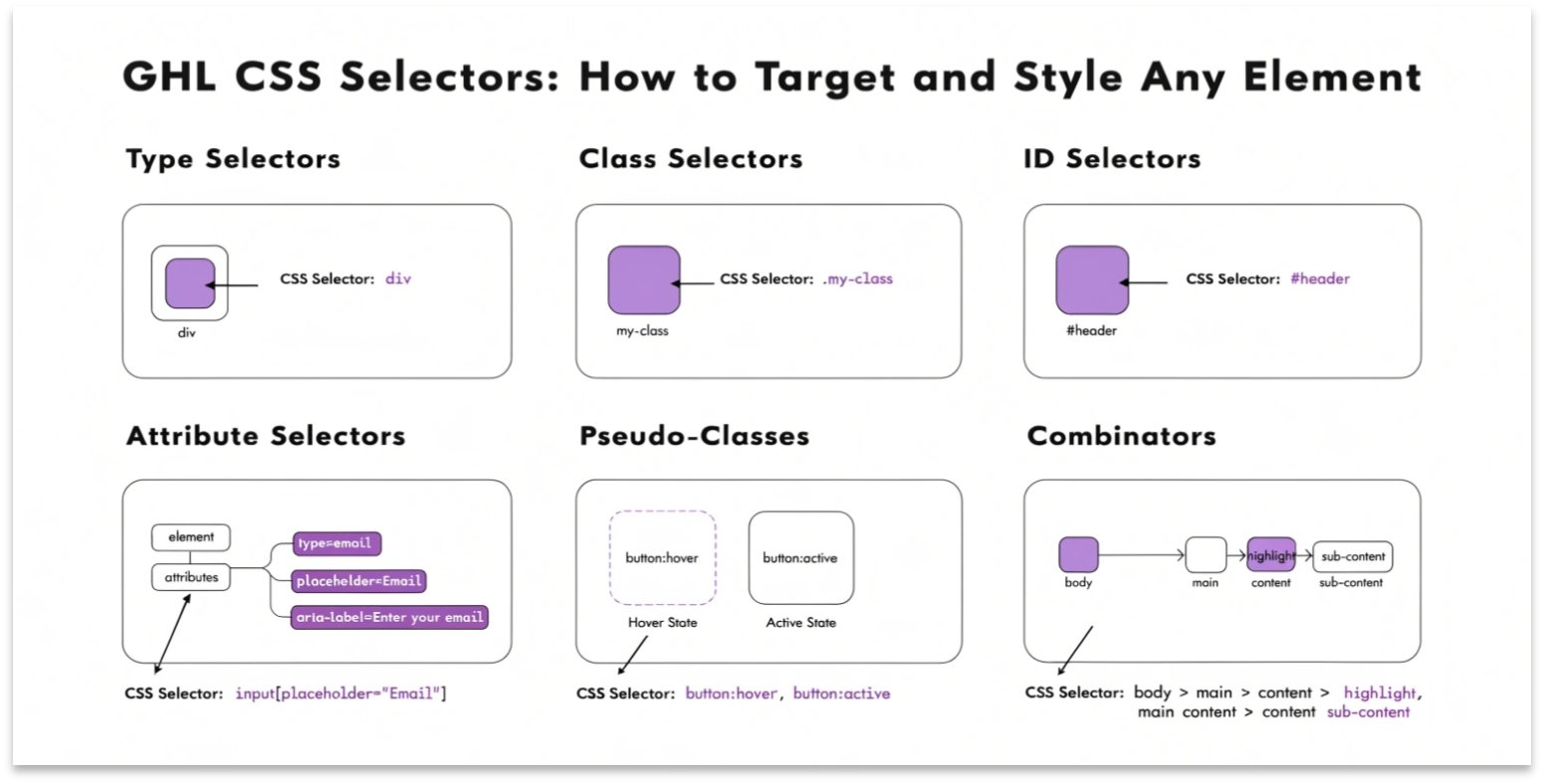
A selector is like an address for a piece of code. It tells the browser, “Apply this color only to this specific button.” In GHL, almost every element has a unique ID or a shared Class.
Common Types of Selectors in GHL:
- Class Selectors (.): Used for groups of items, like all buttons on a page.
- ID Selectors (#): Used for one specific item, like a single unique form field.
- Element Selectors: Used for general parts like
h1(headers) orp(paragraphs).
How to Find GHL Selectors Using Chrome DevTools
You don’t need to be a programmer to find selectors. You can use a free tool already inside your Google Chrome browser.
- Open your GHL page: View your live funnel or website.
- Right-Click: Hover over the element you want to change and click Inspect.
- Find the Code: A window will open on the right. Look for the highlighted line of code.
- Copy the ID or Class: Look for text like
id="button-123"orclass="elButton".
Once you find the ID, you can use it to create a GHL Dashboard CSS layout that is completely custom.
Common GHL Selectors Table
| Element Name | Common GHL CSS Selector | What it Controls |
| Main Button | .elButton | Every button in the funnel builder. |
| Form Input | .form-control | The boxes where users type their info. |
| Section | .inner | The white space inside a section. |
| Headline | .elHeadline | The main big text at the top of a page. |
How to Write Your First Selector Code
Once you have the selector name, you can write your CSS. If you found a class named .elButton, your code would look like this:
CSS
.elButton {
  background-color: #ff0000 !important;
  text-transform: uppercase !important;
}
The Power of the “Inspect” Tool
When you are in the “Inspect” window, you can actually type new colors or sizes directly into the browser. This lets you see the changes before you save them in GHL. It is a great way to test your design without breaking anything.
Tips for Targeting GHL Elements
Use Specific IDs for One-Time Changes
If you change .elButton, every button on your page will change. If you only want to change the “Buy Now” button, use its specific ID (like #button-1632).
Watch Out for Nested Elements
Sometimes GHL puts a button inside a “wrapper” div. If your CSS isn’t working, try targeting the parent element first.
Keep a “Cheat Sheet”
As you find selectors for things like GHL Membership Sites, save them in a notes file. This makes your next project much faster.
Frequently Asked Questions (FAQs)
Why is my CSS selector not working?
Most likely, GHL’s default style is “stronger” than yours. Add !important to the end of your CSS line to fix this.
Can I find selectors on a mobile phone?
It is very hard to do this on a phone. It is best to use a laptop or desktop computer with the Chrome browser.
Do I need to find selectors for every page?
No. Many elements, like buttons and forms, use the same class names across all GHL funnels.
Conclusion
Learning how to find GHL CSS selectors is the “superpower” of a top-tier agency. It allows you to move past the basic drag-and-drop features. Once you know how to target elements, you can design anything you can imagine. Start by inspecting your favorite funnel today and see how it was built!