
GHL Membership Site CSS: How to Create a Premium Course Area
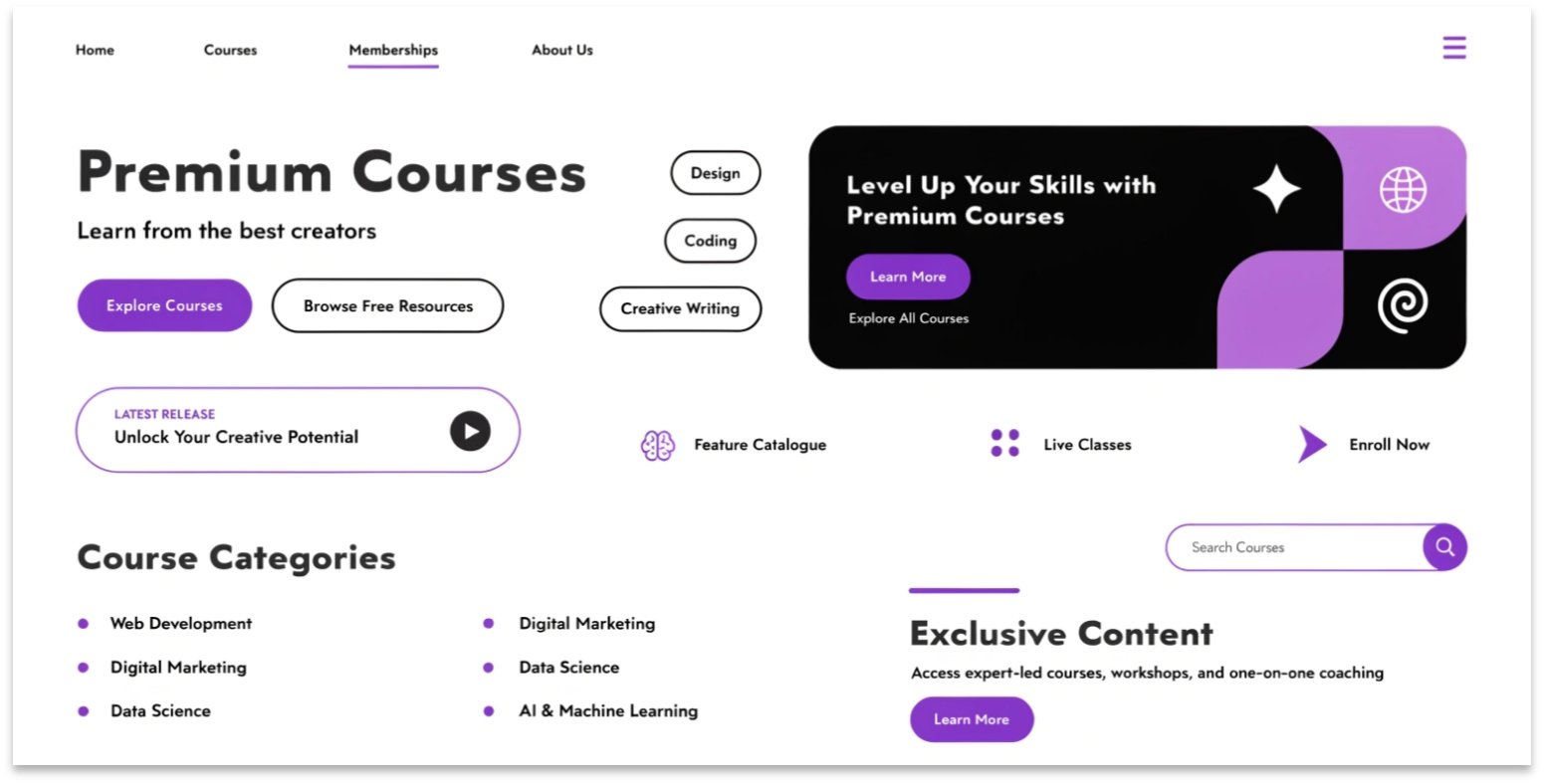
Do you want your GoHighLevel (GHL) membership site to look like a high-end learning platform? The standard GHL portal is great for hosting videos, but the design can feel a bit plain. By using GHL CSS, you can transform your course area into a professional “Netflix-style” experience.
In this guide, we will show you how to style your membership headers, sidebar navigation, and lesson cards to impress your students.
Why Style Your GHL Membership Portal?
Your membership area is where your customers spend the most time. If it looks premium, they will feel they got a better deal. A custom-styled portal also makes it easier for students to find their lessons.
Benefits of Membership CSS:
- Professional Look: Move away from the “standard” GHL layout.
- Better Navigation: Use colors and icons to highlight the current lesson.
- Increased Retention: Students are more likely to finish a course if the area feels modern and clean.
Where to Add CSS for GHL Memberships
Unlike funnels, membership CSS is added in a specific spot:
- Go to Sites > Memberships > Settings.
- Click on Custom JS/CSS.
- Paste your code into the CSS box and click Save.
Before you start styling the portal, make sure you understand the basics of GHL CSS to avoid common coding mistakes.
Standard Portal vs. Custom CSS Portal
| Feature | Standard GHL Portal | Custom CSS Portal |
| Lesson Cards | Sharp Edges | Rounded with Soft Shadows |
| Header | Simple Logo | Transparent or Gradient Bar |
| Sidebar | Basic List | Active Lesson Highlighting |
| Fonts | Default System Fonts | Custom Brand Fonts |
Top GHL CSS Snippets for Memberships
Use these snippets to give your course area an instant facelift.
1. Create Rounded Lesson Cards
CSS
.card-course {
  border-radius: 12px !important;
  box-shadow: 0 4px 10px rgba(0,0,0,0.1) !important;
  transition: 0.3s;
}
2. Style the “Mark as Complete” Button
CSS
.btn-complete {
  background-color: #10b981 !important;
  border-radius: 5px !important;
  font-weight: bold !important;
}
3. Change the Sidebar Navigation Background
CSS
.membership-sidebar {
  background: #f9fafb !important;
  border-right: 1px solid #e5e7eb !important;
}
How to Make a “Netflix-Style” Layout
To get that modern streaming look, you should focus on your Course Library page. Use CSS to make your course thumbnails larger and add a “zoom” effect when a user hovers over them.
- Set the
aspect-ratioof your thumbnails to 16/9. - Add a
scaleeffect on hover. - Hide the progress bar until the user hovers over the card.
If you are also working on your main agency look, don’t forget to check our guide on GHL Dashboard CSS for a consistent brand experience.
Best Practices for Membership Design
Focus on Readability
Course areas are for learning. Do not use dark backgrounds with dark text. Always use high contrast so students can read your lesson notes easily.
Keep It Fast
Memberships often have many images and videos. Keep your CSS file small so the lessons load quickly on slow internet connections.
Mobile Learning
Many students watch courses on their phones. Test your CSS on a mobile device to make sure the sidebar doesn’t block the video player.
Frequently Asked Questions (FAQs)
Will CSS hide my videos?
No. CSS only changes the “frame” around your videos. Your video hosting (Wistia, YouTube, or GHL) will stay the same.
Can I use different CSS for different courses?
Currently, the Custom CSS in GHL Memberships is global. This means it will apply to all courses inside that specific portal.
Can I change the login page too?
Yes! You can use the same CSS box to style the login and password reset pages for your students.
Conclusion
A beautiful GHL Membership Site sets you apart from other coaches and agencies. By adding just a few lines of CSS, you can turn a basic course into a premium digital product. Start by rounding your cards and matching your brand colors to create a space where your students love to learn.